Schedule Whop Community Posts from TimeToPost
TimeToPost supports scheduling posts into a Whop community forum using your own account. You provide the API key and the forum experience ID, and TimeToPost uses the permissions you grant for posting.
Use the same calendar for your community updates and Telegram channel posts. You choose the connected forum for each post.
What you need first
Before connecting, prepare:
- A Whop API key for your own account
- Scopes that include
forum:readandforum:post:create - The forum experience ID, which looks like
exp_...
TimeToPost stores tokens encrypted. Removing the connection from TimeToPost removes it from the app, but it does not revoke the provider key. If you want to stop access completely, revoke the key in Whop.
If connection fails, check that the ID belongs to a Forums experience your key can access. A business ID or product ID is not a forum experience ID. Grant only the required permissions; an unrestricted admin key is unnecessary.
Supported post format
Whop forum posts created through this integration support:
- Markdown text up to 20,000 characters
- Optional title up to 255 characters
Current limitations:
- No attachments
- No threads
- No polls
- No paywalls
- No pinning
Connect Whop
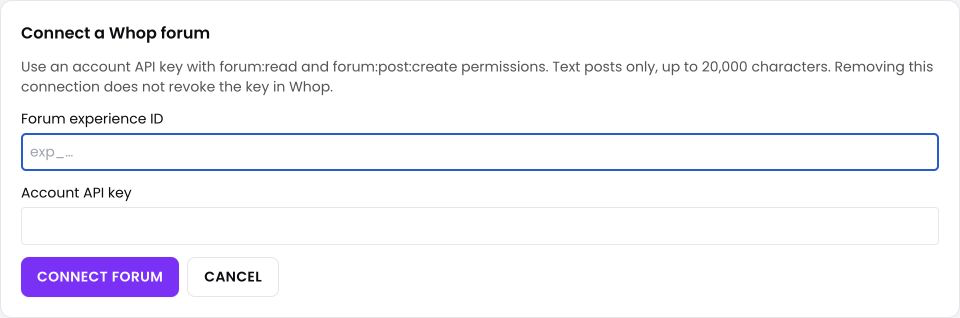
- Open Settings → Integrations
- Choose Connect beside Whop
- Paste your API key
- Enter the forum experience ID
- Choose Connect forum
Once connected, open the dashboard, create a post and select the exact connected Whop forum. Write your Markdown body and, if needed, fill in Whop title. Choose a future date and time, then schedule. Confirm the forum and time in the calendar entry. Switch to the intended workspace before connecting or composing.
You can monitor planned posts in Calendar.
Delivery status and uncertain results
Scheduled posts become due at the chosen time, and TimeToPost records the result when the platform response is available. Sometimes an outcome can remain uncertain. In that case, check the target forum before creating another attempt.
TimeToPost does not blindly retry uncertain sends, because that could create duplicate posts if the first attempt actually succeeded.
Disconnecting or revoking access
To disconnect Whop from TimeToPost, remove it from Settings → Integrations.
To fully revoke access:
- Revoke the API key in Whop
- Confirm the connection is removed from TimeToPost
- Reconnect only when you have a fresh key and the correct scopes
FAQ
Can I attach images or videos?
No. This integration currently supports text-only forum posts.
Do I need forum permissions?
Yes. The API key must include forum:read and forum:post:create.
Can TimeToPost pin or paywall a post?
No. Pinning and paywalls are not supported.
Does removing the integration revoke my Whop key?
No. Removing it from TimeToPost does not revoke the provider key.